
What does the Apple Watch app record?
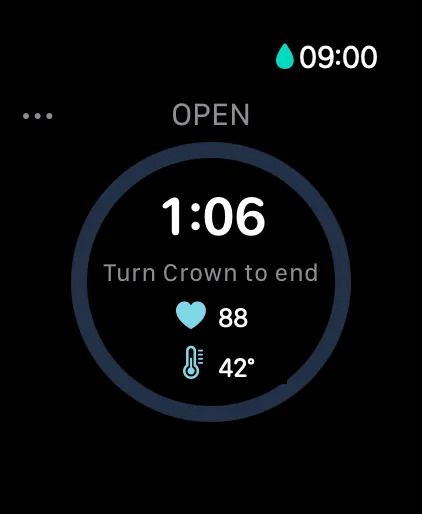
PlungeLab captures cold plunge, cold shower, and open-water sessions on Apple Watch. The active screen shows elapsed time and available heart-rate data, with water temperature when supplied by a supported sensor or entered manually. Completed sessions are saved on the Watch and transferred to the paired iPhone for your history.
You need a Watch running watchOS 11 or later and a paired iPhone running iOS 26 or later. Every compatible Watch supports manual-start capture. Water-temperature sensing and automatic water-entry detection are available on Apple Watch Series 10 or later and Apple Watch Ultra (not SE), subject to runtime capability; they are optional enhancements.
App compatibility and water suitability are separate checks. See Can you wear an Apple Watch in an ice bath? for Apple’s model-specific limits, band guidance, Water Lock, and aftercare.
How the ice bath timer works
- Choose the exposure type on your Watch: cold plunge, cold shower, or open water.
- Review the options. Choose your own duration or leave the session open-ended, and optionally enter water temperature.
- Tap Start. A short countdown leads into recording.
- A timed session ends at its configured target. For an open-ended session—or to end early—deliberately turn the Crown until the end-progress ring fills.
- The session saves first. Available post-exit heart-rate recovery information can update the record afterward.
For cold plunge and open-water sessions, Water Lock is enabled during capture; showers keep it off. Crown press-and-hold remains Apple’s Water Lock control, separate from PlungeLab’s deliberate rotation gesture.
The timer records a choice you made. It doesn’t decide a safe exposure length or tell you to remain in cold water until it finishes.
What do Apple Watch Series 10 and later and Ultra add?
Apple Watch Series 10 or later and Apple Watch Ultra (not SE) can provide water-temperature measurements and water-entry detection when the capability is available and enabled. These features depend on sensor conditions and device permissions. Automatic entry detection is for cold plunge and open water, not cold showers.
See which models measure Apple Watch water temperature and what to check when a reading is missing.
If temperature readings aren’t available, manual entry remains a fallback. PlungeLab isn’t a dive computer, and it doesn’t use depth to make safety decisions. Don’t assume a sensor or automatic event will always arrive.
See the cold shower guide for why shower temperature capture is best effort rather than guaranteed.
Does the Watch need to stay connected to iPhone?
A completed session is saved to the Watch before transfer to iPhone. That separates recording from immediate phone connectivity. If a session hasn’t appeared on iPhone, bring the paired devices together and open both apps. Don’t uninstall the Watch app to troubleshoot: it may hold the only copy.
The support page explains what information to send if syncing still doesn’t complete. Local storage and device-to-device synchronization aren’t a separate cloud backup service.
What if heart-rate data is missing?
Sensor contact, device conditions, and permissions affect available readings. A saved session can still be useful without heart-rate data. PlungeLab doesn’t invent missing measurements, and a manual session doesn’t reconstruct a Watch trace after the fact.
Post-exit recovery and longer-term Insights describe different things: one concerns available readings around a session; the other compares observations across your history. Neither is medical advice or an emergency alert.
Can I use PlungeLab without a Watch?
Yes. The iPhone cold plunge log accepts manual sessions without a Watch or Apple Health connection. Sauna and contrast sessions should be logged manually on iPhone; Apple Watch is not intended for sauna heat.
Use hardware only within Apple’s instructions for your model. Read PlungeLab’s full safety warnings before use. The app does not monitor you for emergencies or summon help.

Questions before downloading? Talk to the team.