
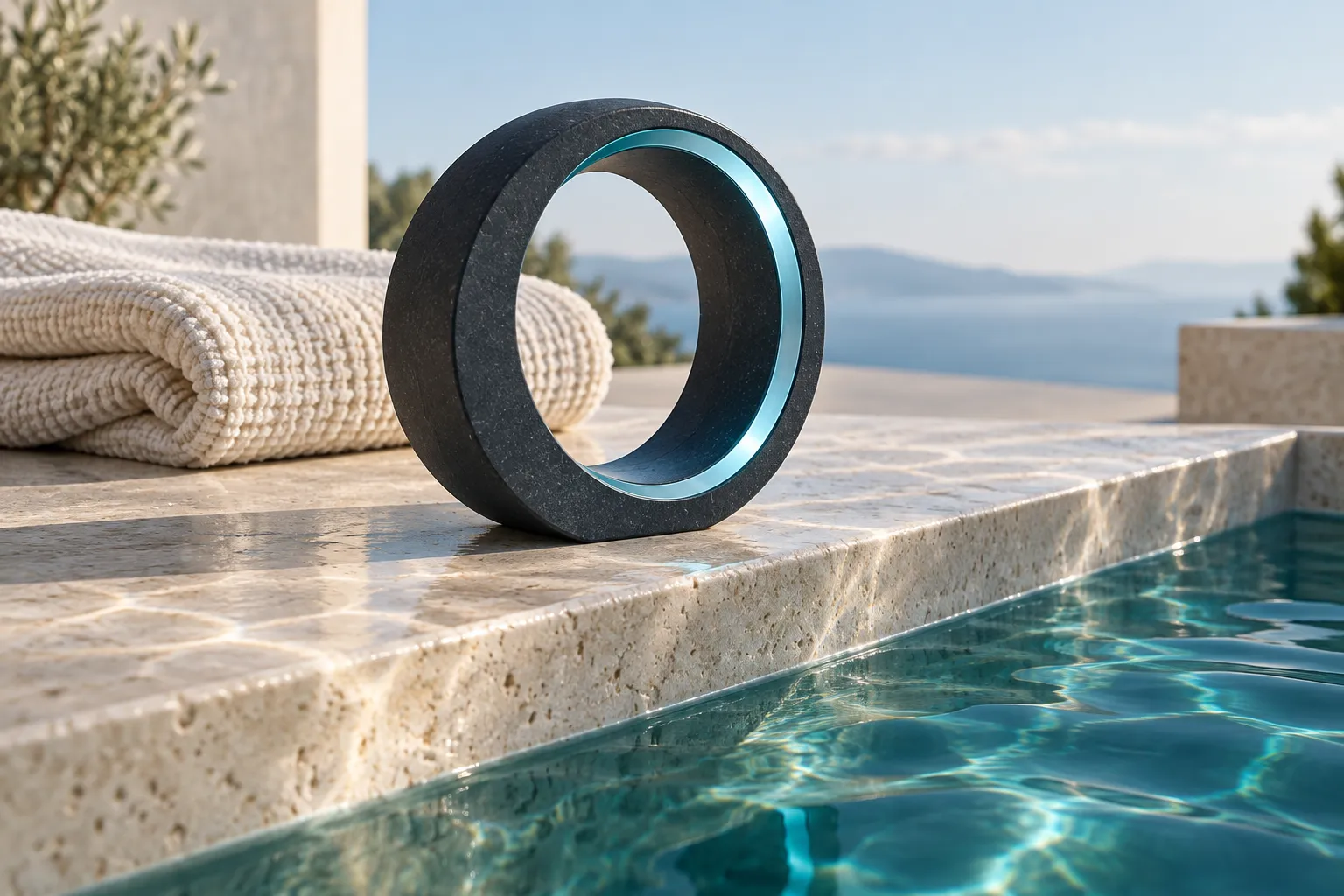
To track an already planned cold plunge with PlungeLab, open the Apple Watch app, choose the exposure type, and tap Start. The Watch records elapsed time and available heart-rate readings. Finish with a deliberate turn of the Digital Crown, then review the saved session on your iPhone.
Core capture and history are free. This walkthrough covers the manual-start flow, optional timed recording, Water Lock, transfer to iPhone, and the limits of temperature and heart-rate capture.
What do you need before recording?
PlungeLab requires an iPhone running iOS 26 or later and an Apple Watch running watchOS 11 or later. Every compatible Watch offers manual capture; Apple Watch Series 10 or later and Apple Watch Ultra (not SE) also support automatic water-entry detection and water temperature when the runtime capability is available.
App compatibility and suitability for water are different checks. Read Apple’s water-resistance guidance for your model and band. Resistance can decline over time, and some bands are unsuitable for water. For sauna sessions, leave the Watch outside and log manually on iPhone.
For a model comparison, ambient versus water-temperature limits, and aftercare, read Can you wear an Apple Watch in an ice bath?.
Set up the app and permissions before approaching the water. Recording does not establish that immersion is appropriate for you. Use our beginner guide for preparation and discuss suitability with a healthcare professional. Leave the water whenever you need to; finishing a recording is secondary.
Install PlungeLab on your Apple Watch
Install PlungeLab on iPhone, then check that the companion Watch app is installed too. If it has not appeared automatically:
- Open Apple’s Watch app on the paired iPhone.
- Open My Watch and find the apps list. In Apple’s current instructions, this is under Apps; navigation may differ with the installed OS version.
- Locate PlungeLab under Available Apps and tap Install.
- Open PlungeLab on the Watch and complete the setup shown there.
These installation steps follow Apple’s current app-download instructions. If PlungeLab is missing, check your OS compatibility and that you are using the Watch paired with that iPhone.
Choose the session and check Options
The Watch presents one exposure type at a time. Browse with the Crown and tap the displayed type to choose it. Cold plunge, cold shower, and open water have separate labels; choose the activity you are recording rather than using one label for everything.
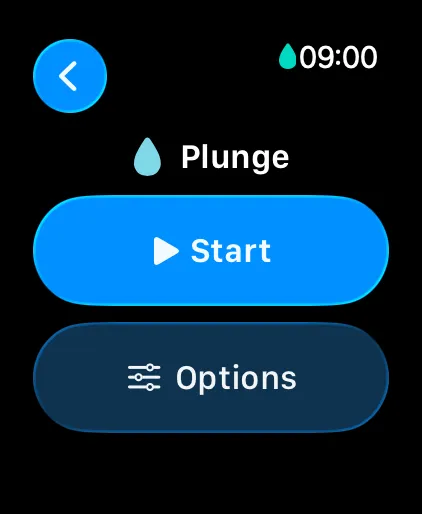
The next screen offers Start and Options. Before a manual-start session, Options lets you check the remembered target duration and any manual temperature. A remembered value is convenient, but it is not evidence that today’s conditions match the last session.
- Target off: the display counts elapsed time until you end the recording.
- Target selected: the recording ends automatically when that configured time is reached; you can also end earlier with the Crown.
- Manual temperature: enter a known value or clear it if unknown. On Apple Watch Series 10 or later and Apple Watch Ultra (not SE), supplied sensor readings can replace the manual fallback when the runtime capability is available.
Choosing a target is an app setting for an already planned activity. It does not recommend an exposure time or make staying until the target safe.
Start recording and read the active screen
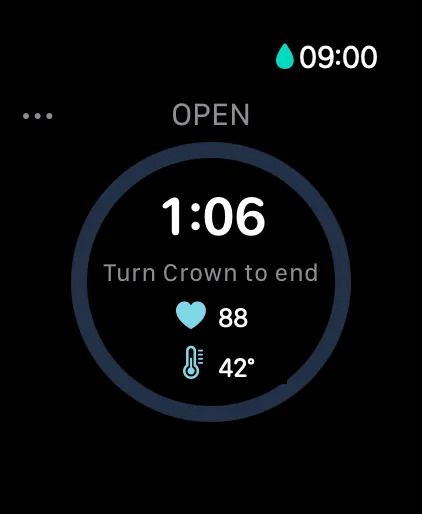
Tap Start. PlungeLab shows a haptic 3–2–1 countdown, then begins the recording. The active screen emphasizes elapsed time, with heart rate and water temperature when readings are available.
An open-ended recording says Turn Crown to end. A timed recording displays its configured target and fills its ring as time passes. Missing sensor data is different from a zero reading: you can still have a useful duration record without a complete set of metrics.
Finish with the Crown, then unlock Water Lock
For an open-ended recording, deliberately rotate the Digital Crown until the end-progress ring fills. A partial turn that you abandon resets, helping distinguish an intentional finish from a small accidental movement. Timed sessions accept the same gesture for an early finish.
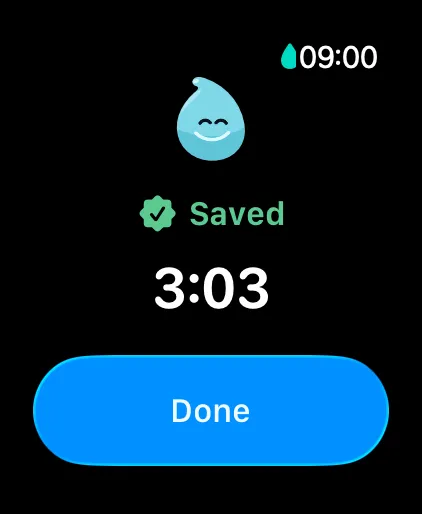
Ending saves the session locally without needing a separate Save tap on a wet display. The confirmation shows Saved, the duration, and Done. If a storage problem is shown, follow its recovery guidance rather than assuming that a failed save completed.
For cold plunge and open-water capture, PlungeLab enables Water Lock; cold-shower capture keeps it off. There are two different Crown actions:
Scroll to read the full table →
| Action | Purpose |
|---|---|
| Rotate the Crown in PlungeLab’s active recording | Deliberately finish the session. |
| Press and hold the Crown with Water Lock active | Unlock the Watch display and eject water from its speaker. |
Apple’s Water Lock instructions explain the press-and-hold action on supported OS versions. Water Lock prevents touch input; it does not make the Watch waterproof or assess the safety of the water activity. Once out of the water, unlock when needed to use the display and tap Done.
Find the saved session on iPhone
Open PlungeLab’s Log tab on iPhone to review the transferred record. History keeps the session’s duration, known temperature, and available captured information together. You can add context such as mood, perceived intensity, and a note; captured sensor fields retain their provenance.
The Watch saves locally before transferring to iPhone. A temporary disconnect does not need to prevent a local save. A session may reach the phone later when connectivity returns; a genuine pending or failed transfer is shown separately. Check both devices before manually duplicating a record that has not arrived yet.
Available post-exit heart-rate recovery information may update the same saved session later. “Saved” does not mean every optional metric has finished collecting. You do not need to stay in the water or wait for a Watch recovery countdown to complete the record.
What can the Watch sensors tell you?
Heart-rate and temperature capture have limits. Apple explains that cold conditions can reduce wrist skin perfusion, sometimes preventing an optical heart-rate reading. Fit, motion, and skin characteristics can also affect readings. A gap is not proof that your heart rate was steady or that the session was safe.
On Apple Watch Series 10 or later and Apple Watch Ultra (not SE), PlungeLab’s temperature capture requires the supported capability and actual samples. A sensor-equipped Watch does not guarantee a reading in every situation. Cold showers remain manual-start and manual-end, even when temperature monitoring is available; splashes are not a reliable water-entry signal.
Our water-temperature guide explains the model list, wrist-versus-water sensors, and shallow-tub limitations.
In Watch Options, the toggle is labeled Auto-detect plunges. On Apple Watch Series 10 or later and Apple Watch Ultra (not SE), enabling it allows supported water-entry detection when the runtime capability is available. That is a separate convenience from this manual-start walkthrough. If the option is absent or data is unavailable, use the manual flow and keep unknown measurements blank.
Troubleshooting common recording questions
Scroll to read the full table →
| What you see | What to check |
|---|---|
| The display does not respond to taps | Check Water Lock; out of the water, use Apple’s unlock gesture. |
| No heart-rate reading | Check permissions and Watch fit. Cold can affect readings; don’t invent missing data. |
| No temperature reading | Water temperature requires Apple Watch Series 10 or later and Apple Watch Ultra (not SE), runtime capability, and usable sensor samples. Clear unknown manual values. |
| The session is saved on Watch but absent on iPhone | Check connectivity and any transfer message before making a duplicate entry. |
| The app presents a recovered recording | Review its proposed timing before saving; don’t assume it perfectly matches time in the water. |
If a problem persists, contact PlungeLab support with the device models, OS versions, and what appeared on screen. You do not need to send private health values to explain a control or transfer problem.
Is the Watch app free?
Yes. Watch capture, manual iPhone logging, and session history belong to PlungeLab’s free core. Optional Pro features add deeper analysis and other tools on iPhone.
The annual Pro plan offers a seven-day free trial for eligible customers and renews into a paid annual subscription unless canceled. Confirm the localized price, eligibility, renewal date, and cancellation terms in Apple’s purchase sheet. Pro is optional for this recording workflow, and the trial does not guarantee enough observations for a personal Insight.
Download PlungeLab to record from your wrist. For what to add after saving, continue with our cold plunge journal guide.
Still choosing a tracker? Our comparison of cold plunge apps for iPhone and Apple Watch covers PlungeLab and eight alternatives, including sensor support, free features, and privacy.
Sources and editorial approach
Written by the PlungeLab team. Product steps describe PlungeLab’s capture flow; Apple’s documentation supports installation, Water Lock, water-resistance, and measurement limits. Screens use illustrative data. This is an app walkthrough, not an exposure protocol, emergency monitor, or medically reviewed guide.
- Apple Support: download apps on Apple Watch.
- Apple Support: Water Lock and water ejection.
- Apple Support: Apple Watch water resistance.
- Apple Support: measurement accuracy and heart-rate limitations.

Free session capture and history for iPhone and Apple Watch. Talk to the team.